Notification Center
Opening the Center
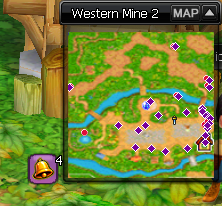
Click the bell icon near the minimap to open the Notification Center. From there, click the Settings icon to open the Notification Configuration window and choose which activities you want to receive notifications for.
All notifications except Auction House and NosBazaar are cleared from the Notification Center after closing the game.
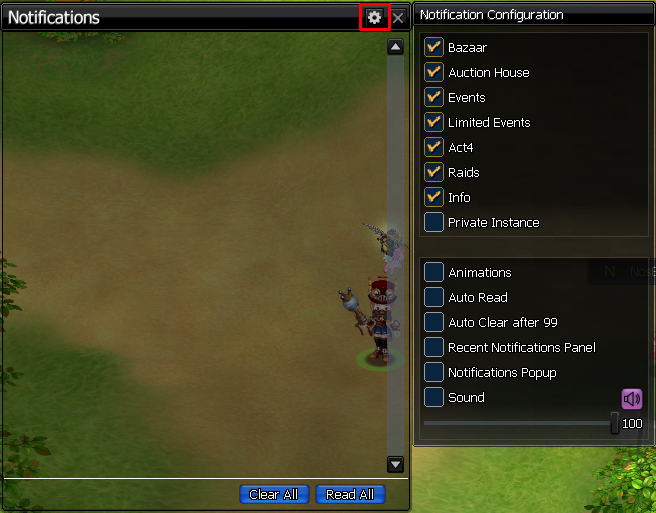
Notification Types
Bazaar
Bazaar notifications help you claim completed sales and repost expired listings quickly.
Examples
You have successfully sold 10x Carve Runes Box 1 for 52'001g. Do you want to claim the gold?
Your %xx %s has expired. Do you want to repost it using the same settings?
You have multiple items ready to claim from the Bazaar. Do you want to claim them now?
Multiple Bazaar listings have expired. Do you want to repost all of them using the same settings?
Auction House
Auction House notifications cover sold auctions, expired auctions, refunds, won bids, and outbid alerts.
Examples
Your auction for %xx %s has been sold for %d AHG. Do you want to claim your AHG?
Your auction for %xx %s has expired. Do you want to repost it using the same settings?
The auction for %xx %s that you bid on was won by another player. Do you want to claim your refunded AHG?
You have successfully won the auction for %xx %s. Do you want to claim the item?
Someone has outbid you on 1x Golden Mask by 111 AHG. Do you want to view the auction?
If the same item was sold in multiple separate listings, claiming the gold from one notification will automatically claim the gold from all completed sales of that item.
Events
Event notifications display a pop-up with a sound alert. You can join events by clicking the "xxx has started" text.
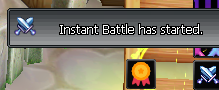
You can turn this off by disabling Events in the Notification Configuration window.
Limited Events
Limited Event notifications are planned for a future update.
Act 4
Act 4 notifications appear whenever either faction starts an Act 4 Raid.
Raids
The Raid Damage Summary window no longer appears automatically at the end of a raid. Instead, you receive a notification like this:
The Belial Raid has ended. Do you want to view your Raid Damage Summary?
Click Show! to open the Raid Damage Summary.
Info
Info notifications are planned for a future update.
Private Instances
The Private Instance Summary window no longer appears automatically when you leave a Private Instance. Instead, you receive a notification like this:
You have completed the Private Instance. Do you want to view your session summary?
Click Show! to open the Private Instance Summary.
Configuration Options
You can enable or disable the following settings:
- Animations
- Recent Notifications Panel
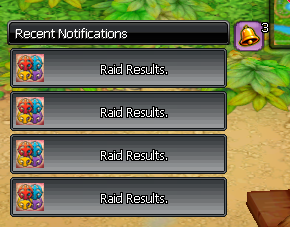
- Sound
- Auto Read / Auto Clear
- Notification Pop-ups